The reason why should you remove the YouTube logo and title links from embedded video to help your Website or Blog visitors you’ll be embedding YouTube videos in your Website or Blog, however, this can reason to lose your Website or Blog visitor. Anyone when viewing a video in your Website or Blog can click that YouTube logo or title links and jumps to YouTube in which you are losing your site/blog visitor. To retain your site/blog visitor and to reduce bounce rate you have to embed YouTube video deprived of YouTube logo and title links. Let’s see in what way to remove the YouTube logo as well as title links from the embedded video.
Remove YouTube logo and title links from an embedded video

1. From the bottom right corner YouTube logoGo to YouTube and select the video you wish to embedChoose share >> embed and grab the Iframe embed code. you will see the code like this which is given below in the Image Click On (SHOW MORE)
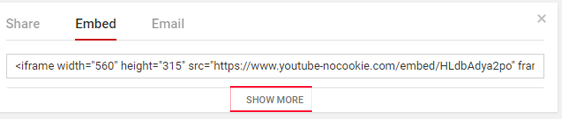
Make sure to uncheck the “show suggested videos when the video finishes”.
Remove YouTube logo and title links from an embedded video


The image above is the results you see with normal iFrame embed. With this there are three ways users can jump to YouTube when viewing videos on your site.
2. From the title link above the video and
3. From the list of suggested videos when the video finishes\
So we are going to remove these three options. The procedure is the same as normal iframe embed, but we are going to add some simple code. Let’s see how it works.
How to remove the YouTube logo and title links from an embedded video

1. Grab that iframe code and paste it into your site.
2. In that code remove rel=0 at the end of the YouTube URL (next to question mark ?) and remove allowfullscreen before the closing angle brackets.
3. Now You have the code which you have just copied from Youtube Now just have to one that's out here below:
<iframe width="560" height="315" src="https://www.youtube.com/watch?v=cubd5cpyL30?rel=0&controls=0&showinfo=0" frameborder="0" allow="autoplay; encrypted-media" allowfullscreen></iframe>
4: Change "show" Which is out there in your embed videos code to "hide" but make sure without double quotes
Like This:

Once done save changes then check the embedded video in your Website or Blog. You won’t see the YouTube logo, Title links, full-screen option and suggested videos at the end. Now your site visitors cannot be able to jump to YouTube enjoy.Here is the Example Video of without YouTube Logo
Like This:
5: for the Title Link do this :
<iframe width="560" height="315" src="https://www.youtube.com/embed/cubd5cpyL30?rel=0&controls=0&hideinfo=0" frameborder="0" allow="autoplay; encrypted-media" allowfullscreen></iframe>
Now paste the following code at the end of the YouTube URL (next to question mark ?). See the image below.